Error messages
Table of contents
- Configuring the error message
- Message after a password update
- Defining messages without a custom theme
- Defining messages in a custom theme
- Different messages per client
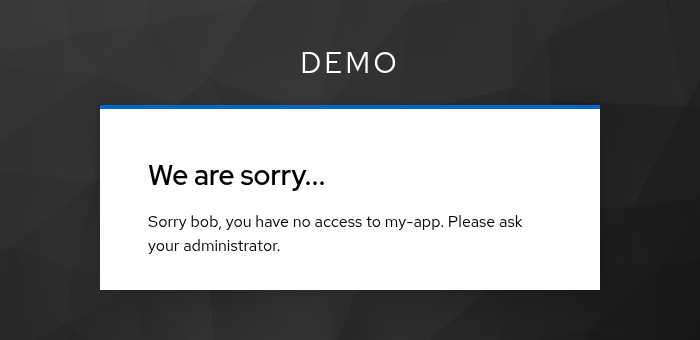
If access is denied during a browser-based login, Keycloak shows an error page.
Configuring the error message
Configure the error message in the required action and in each authenticator (restrictClientAuthErrorMessage).
You can directly define a particular message or use a message key. Keycloak looks up message keys in the messages of the login theme, so they support internationalization.
If the field is left blank, the message key access-denied is used. It comes with Keycloak out of the box.
Messages defined via message keys can contain two parameters:
| Parameter | Value |
|---|---|
{0} | The username |
{1} | The client ID of the client the user tried to access |
Parameters are only replaced in messages defined via message keys, not in messages entered directly as the error message.
Message after a password update
The required action runs after other required actions, so users can reset or update their password before access is denied. Users may then wonder whether the password change worked.
Configure Error message after password update (passwordUpdatedErrorMessage) in the required action to show a different message in this case, e.g. via a message key:
restricted-access.denied-after-password-update=Your password has been updated. However, you do not have access to {1}.
The message is shown if users updated their password during the same login, e.g. via the reset credentials flow, because an administrator required it, or via a link sent via email. If blank, the error message is used.
Defining messages without a custom theme
Define the message via realm overrides:
- Go to
Realm settings→Localization→Realm overrides. - Add a translation for your message key, e.g.
restricted-access.denied, per language. - Use the message key as the error message.
restricted-access.denied=Sorry {0}, you have no access to {1}. Please ask your administrator.
Defining messages in a custom theme
Add your message key to the messages*.properties files of your login theme.
# messages.properties
restricted-access.denied=Access denied. User is missing required role 'restricted-access'
# messages_de.properties
restricted-access.denied=Zugriff verweigert. Dem Benutzer fehlt die notwendige Rolle 'restricted-access'.
For details on how to add custom messages to Keycloak, please refer to section Messages and Internationalization in the server developer guide.
Different messages per client
Clients may be restricted for different reasons, e.g. users need to have paid a fee for one client and to live in a certain area for another. There are several ways to show different messages:
- One message for all clients, naming the client: use the
{1}parameter in a message key, e.g.You cannot access {1}. Please contact the service desk. - A login theme per client: Keycloak lets you select the
Login themeper client in the client settings. Override your message key in the theme of each client. - An authenticator per client: add the authenticator with its own error message to a flow and bind the flow to the client via
Authentication flow overridesin the advanced client settings. The authenticator denies access during the flow, before the required action runs, so users see the message of the authenticator.