Configuration
Table of contents
- Recommended setup
- Upgrade notes
- Restricting clients
- Required action
- Checking access whenever tokens are issued
- Realm settings
- Denying access by default
Recommended setup
- Restrict clients by adding the client role or the resource, manually or via the
restrict-client-auth-auto-configclient policy executor. - Keep the required action enabled. It is enabled by default and checks access at the end of every login.
- Create a client policy with the
any-clientcondition and therestrict-client-auth-enforceclient policy executor. It checks access whenever tokens are issued. - Optionally, deny access by default.
- Optionally, keep the authenticator in your flows, e.g. to deny access before other required actions run, or to return a dedicated error for the resource owner password credentials grant.
Upgrade notes
The required action is registered and enabled in all realms by default. This changes the behavior of realms with restricted clients:
- Users without access are now also denied if they log in via a path that bypassed the authenticator, e.g. single sign-on, identity provider redirects, password reset, registration, or links sent via email.
- The required action uses the
autoaccess provider, so it also enforces restrictions via policies. A leftoverKeycloak Client Resourcewithout a permission denies access to everyone. Remove restrictions you do not use. - For the resource owner password credentials grant on restricted clients without the authenticator in the direct grant flow, Keycloak responds with
Account is not fully set upfor users without access.
To keep the previous behavior in a realm, disable the required action. If you are locked out, see Locked out?.
For requests that do not accept HTML, e.g. the resource owner password credentials grant, the authenticator now responds with errors according to RFC 6749: invalid_grant with status 400 from the token endpoint, and access_denied with status 403 otherwise. So far, it responded with access-denied and status 401. Update clients that check for the previous error.
Restricting clients
Client role based
Add a client role named restricted-access to the client you want to restrict access to.
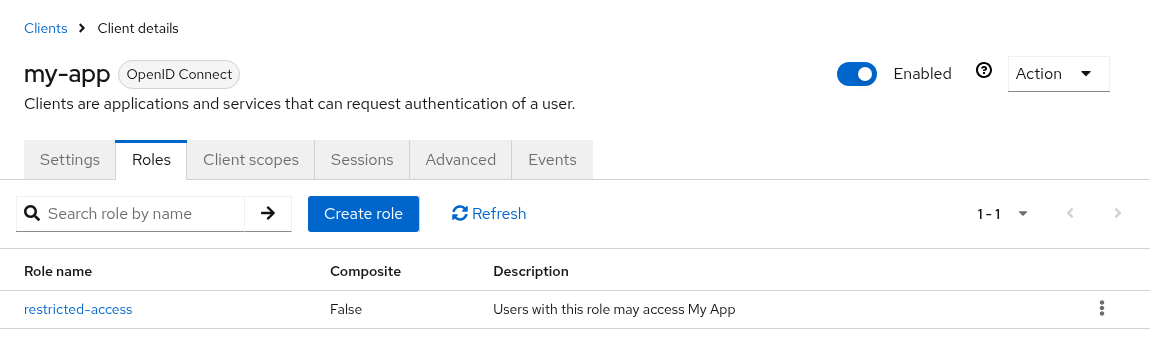
Afterwards, no user can access this client. To allow a user to access it, assign the role restricted-access of that client to the user. You may do so either by assigning the role to the user directly or via groups or composite roles.
Each client has its own restricted-access role, so you can grant access per client, e.g. assign the roles of several clients to a group. See recipes for an example.
Changing the role name
You do not like the role name restricted-access or you do have some kind of naming conventions in place? You can change the role name globally by configuring the provider.
spi-restrict-client-auth-access-provider-client-role-enabled=true
spi-restrict-client-auth-access-provider-client-role-client-role-name=custom-role
For details on SPI and provider configuration, please refer to Configuring providers guide.
Resource policy based
Policy-based restrictions only work with confidential OpenID Connect clients, since Keycloak only supports authorization services for these clients. Use client roles for public clients and SAML clients.
- Open the client and switch on
Client authenticationandAuthorizationin theSettingstab. - Go to
Authorization→Resourcesand clickCreate resource. - Set the
NameandDisplay nametoKeycloak Client Resourceand keep the other fields blank. - Save the resource.
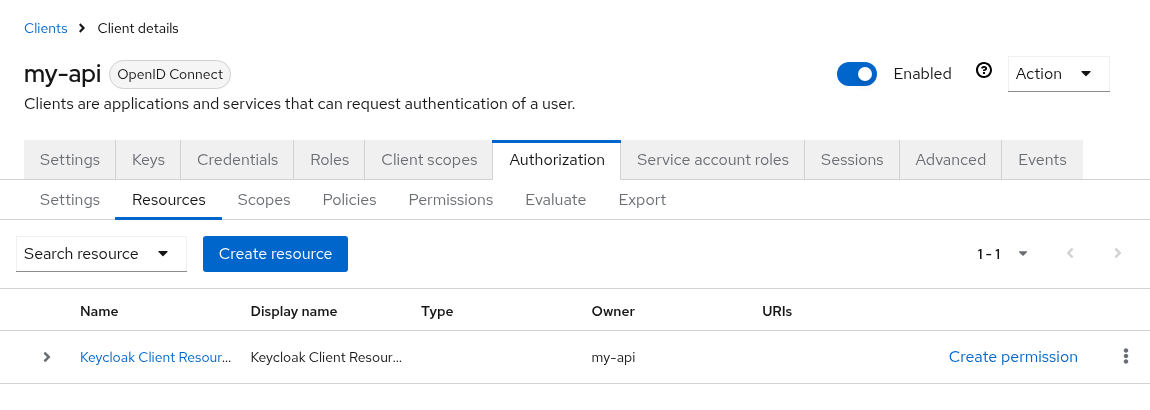
- Click
Create permissionto add permissions and policies (see Authorization Services Guide for details).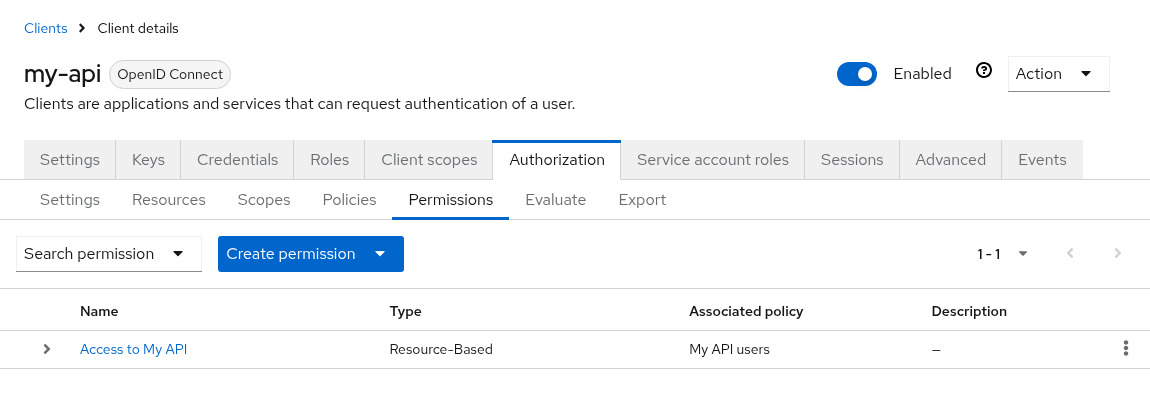
- Afterwards, no user can access this client unless permissions have been granted by configured policies.
The decision strategy of the permission decides how multiple policies are combined, e.g. Affirmative grants access if any of the policies permits it.
Using client roles and policies in the same realm
The auto access provider determines per client which restriction applies. For example, use client roles for public clients and policies for confidential clients.
- A client is restricted if any installed access provider restricts it, e.g. if it has the client role or the resource.
- Access is only permitted if all access providers that restrict the client permit it.
auto considers all installed access providers, including custom ones. The required action and the restrict-client-auth-enforce client policy executor always use auto. For the authenticator, select auto explicitly; its default access provider remains client-role.
Automatically restricting new clients
The restrict-client-auth-auto-config client policy executor restricts clients when they are registered or updated, e.g. via the admin console or dynamic client registration. Configure the access provider in the executor: client-role adds the client role, policy adds the resource. It does not support auto, since it needs to know how to restrict access to a client.
Use the restrict-client-auth-enabled client policy condition to apply client policies only to restricted clients. It only applies when clients are registered or updated, so it cannot be used together with the restrict-client-auth-enforce executor.
Required action
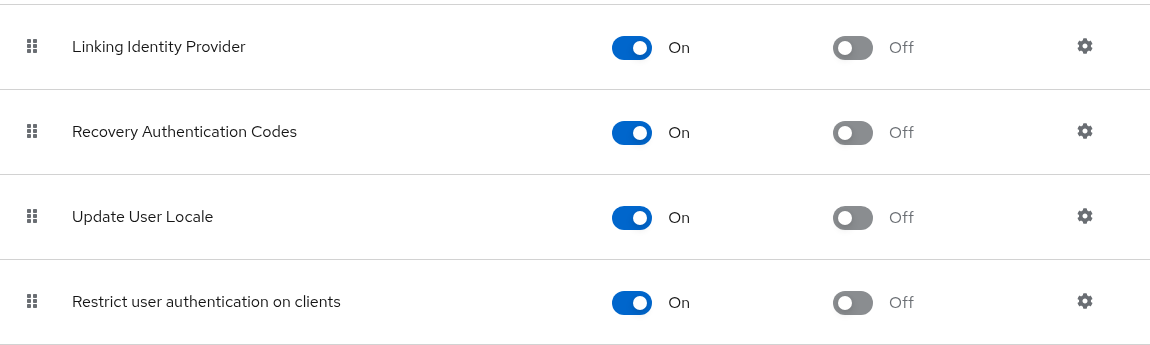
This extension provides a required action named Restrict user authentication on clients (restrict-client-auth-enforce). Unlike the authenticator, the required action does not need to be added to any authentication flow. Keycloak evaluates it whenever a user authenticates, no matter which authentication flow has been used, e.g. for login via username and password, single sign-on, identity providers, registration, credential reset, or links sent via email.
The required action always uses the auto access provider, i.e. it checks all restrictions a client has.
Since Keycloak runs required actions after the authentication flow, access is checked after other required actions have been completed. For example, users are able to reset their password before access to the client is denied.
The required action is registered and enabled in all realms by default: in existing realms on startup, and in new realms when they are created or imported. It is put at the bottom of the list of required actions, so that other required actions run first. If the required action is already registered in a realm, no matter whether enabled or disabled, it is left untouched.
Please note:
- Applications cannot initiate the required action via the
kc_actionparameter. - For the resource owner password credentials grant (direct access grant), Keycloak denies access with an
Account is not fully set uperror instead. Add the authenticator to the direct grant flow or use therestrict-client-auth-enforceclient policy executor for a dedicated error.
Disabling the required action
- Go to
Authenticationand choose theRequired actionstab. - Switch off
Restrict user authentication on clients.
Do not remove the required action, e.g. via the admin REST API. A removed required action is registered and enabled again on the next start.
Configuring the required action
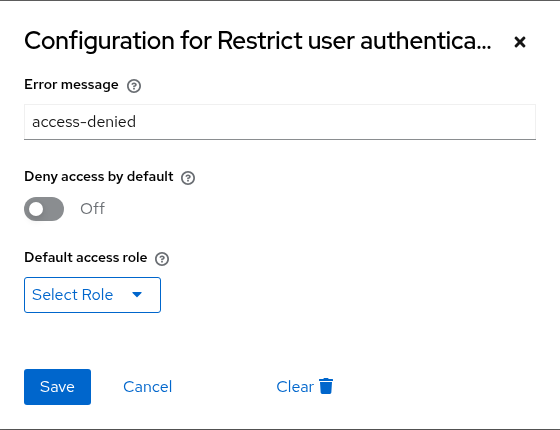
Choose the gear icon of Restrict user authentication on clients to configure the error message and the realm settings.
Checking access whenever tokens are issued
The restrict-client-auth-enforce client policy executor denies issuing tokens for users who do not have access to a restricted client (anymore). Unlike the authenticator, the executor does not depend on authentication flows. Keycloak does not run any authentication flow when a client refreshes or exchanges a token, and the authenticator may be skipped during login, e.g. if users log in via single sign-on or an identity provider.
The executor checks access
- whenever an authorization code is exchanged for tokens, and when tokens are issued via the resource owner password credentials grant or the JWT authorization grant (Keycloak 26.8 or later). It responds with an
invalid_granterror if access is denied. - whenever tokens are issued via the device authorization grant, client initiated backchannel authentication (CIBA), or the implicit or hybrid flow. It responds with an
access_deniederror if access is denied. - whenever a token, including an offline token, is refreshed. It responds with an
invalid_granterror if access is denied. - whenever a token is exchanged using standard token exchange. It checks access to the requesting client and to all clients requested via the
audienceparameter and responds with anaccess_deniederror if access is denied to any of them. This requires Keycloak 26.8 or later. Legacy token exchange (V1), e.g. impersonation or external to internal token exchange, is not covered.
Tokens for service accounts (client credentials grant) are not checked. SAML clients are not covered either, since SAML does not use the token endpoint.
The executor always uses the auto access provider, i.e. it checks all restrictions a client has.
To enable the executor:
- Go to
Realm settings→Client policies→Profiles, create a client profile and add therestrict-client-auth-enforceexecutor to it.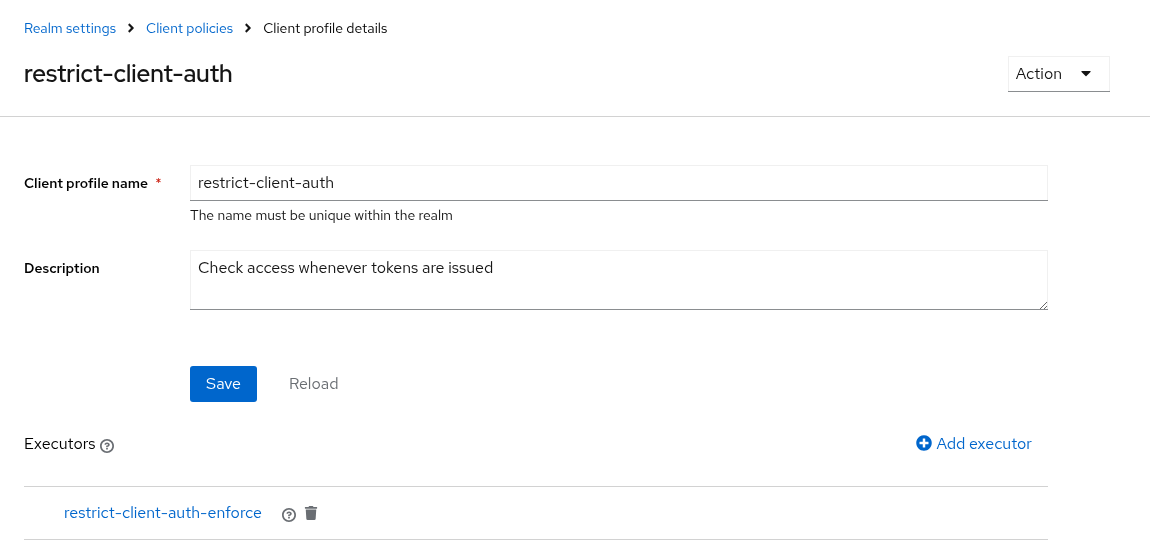
- Go to
Policies, create a client policy, and add theany-clientcondition and the client profile to it.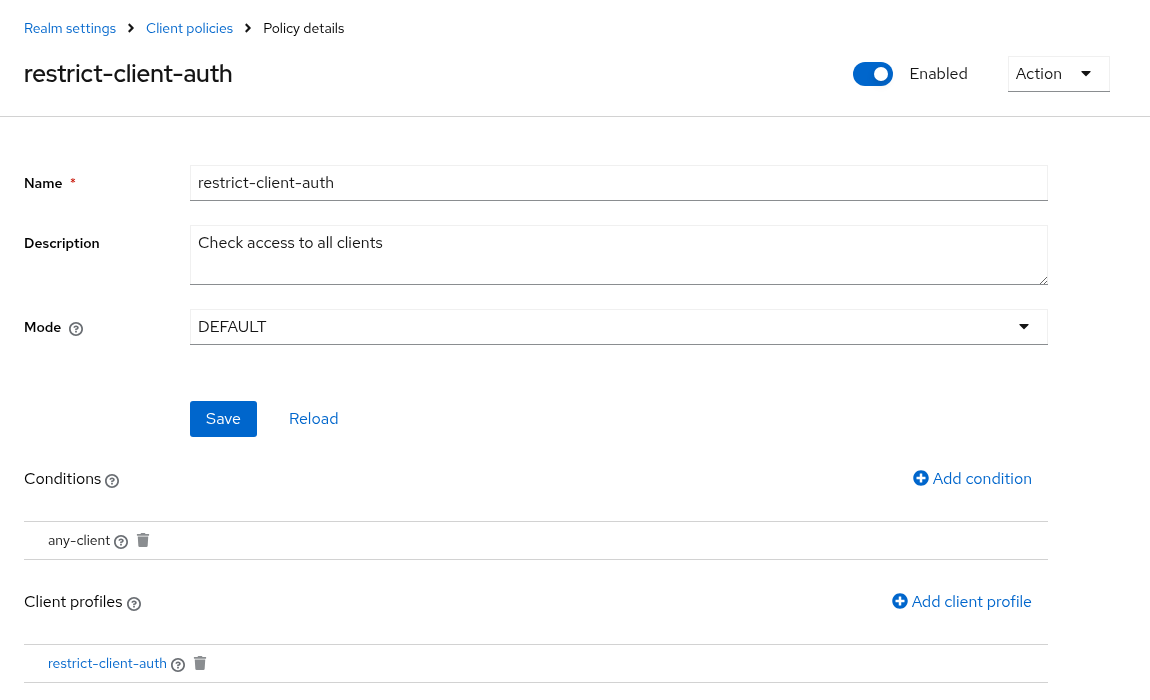
Checking the audience
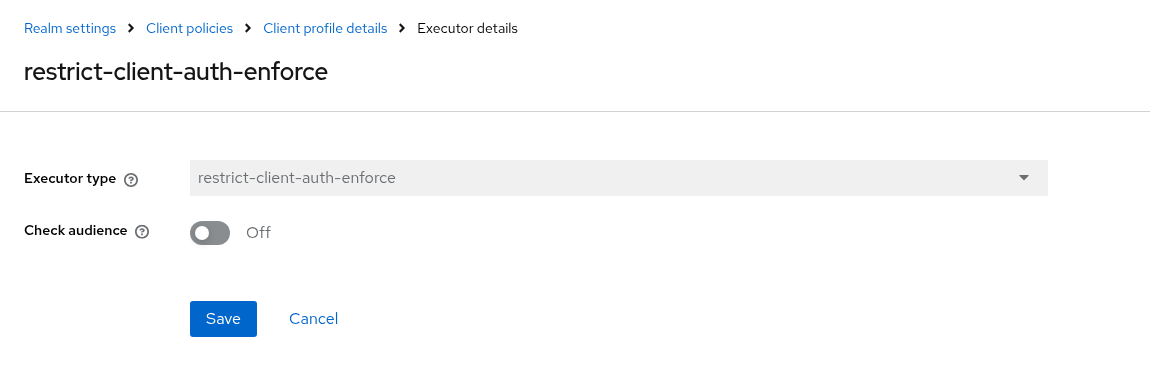
By default, the executor checks access to the client the tokens are issued for, i.e. the authorized party (azp), and, for token exchange, to the requested audience. Access tokens may contain further clients in their audience (aud), e.g. added by audience mappers or because the user has roles of these clients. Enable the Check audience option (checkAudience) to also check access to all clients in the audience of the access token. Tokens are denied if the user does not have access to any of them. Audience values that are no client IDs of the realm are ignored.
Realm settings
The configuration of the required action also holds settings for the whole realm. Deny access by default and Default access role apply to all enforcement points of the realm: the authenticator, the required action, and the restrict-client-auth-enforce and restrict-client-auth-auto-config client policy executors. They apply even if the required action is disabled. It only has to be registered.
| Setting | Key | Applies to | Description |
|---|---|---|---|
| Error message | restrictClientAuthErrorMessage | Required action | The error message shown by the required action, see error messages. |
| Error message after password update | passwordUpdatedErrorMessage | Required action | The error message shown by the required action if users updated their password during the same login, e.g. after resetting it. If blank, the error message is used. See error messages. |
| Deny access by default | defaultDeny | Whole realm | If enabled, all clients of the realm are restricted. See Denying access by default. |
| Default access role | defaultAccessRole | Whole realm | If access is denied by default, users with this role may access all clients that are not restricted by the access provider. Use the role name for realm roles and client-id.role-name for client roles. |
Without these settings, the extension behaves exactly as before.
If the default access role does not exist, access to clients that are not restricted by the access provider is denied and a warning is logged.
Configuring realm settings in the admin console
- Go to
Authenticationand choose theRequired actionstab. - Choose the gear icon of
Restrict user authentication on clientsand configure the settings.
The admin console validates the settings when saving. Default access roles that do not exist are rejected.
Configuring realm settings via the admin REST API
curl -X PUT "$KEYCLOAK_URL/admin/realms/$REALM/authentication/required-actions/restrict-client-auth-enforce/config" \
  -H "Authorization: Bearer $ACCESS_TOKEN" -H "Content-Type: application/json" \
  -d '{"config": {"defaultDeny": "true", "defaultAccessRole": "default-access"}}'
The config endpoint validates the settings and responds with 400 Bad Request if the default access role does not exist.
If the required action has been removed from the realm, register it first:
curl -X POST "$KEYCLOAK_URL/admin/realms/$REALM/authentication/register-required-action" \
  -H "Authorization: Bearer $ACCESS_TOKEN" -H "Content-Type: application/json" \
  -d '{"providerId": "restrict-client-auth-enforce", "name": "Restrict user authentication on clients"}'
Configuring realm settings via Terraform
Use the keycloak_required_action resource of the Keycloak Terraform provider:
resource "keycloak_required_action" "restrict_client_auth" {
  realm_id = keycloak_realm.realm.realm
  alias    = "restrict-client-auth-enforce"
  name     = "Restrict user authentication on clients"
  enabled  = true
  config = {
    defaultDeny       = "true"
    defaultAccessRole = "default-access"
  }
}
Realm export and import
The realm settings are part of the required action in the realm representation and hence part of realm exports and imports, e.g. with keycloak-config-cli:
"requiredActions": [
  {
    "alias": "restrict-client-auth-enforce",
    "name": "Restrict user authentication on clients",
    "providerId": "restrict-client-auth-enforce",
    "enabled": true,
    "config": {
      "defaultDeny": "true",
      "defaultAccessRole": "default-access"
    }
  }
]
Keycloak only validates the realm settings when they are saved via the admin console or the
configendpoint. Settings applied via Terraform, which uses the required action endpoint, or via realm import are not validated. Invalid settings deny access at runtime and are logged as warnings, so check the logs after applying them.
Denying access by default
By default, only restricted clients restrict access, i.e. clients that have the client role or the resource. All other clients are accessible to all users. If you forget to restrict a client, e.g. when introducing a new user pool, all users can access it.
If you enable Deny access by default in the realm settings, all clients of the realm are restricted:
- Access to clients that are restricted by the access provider is decided as usual.
- Access to all other clients is only permitted for users with the default access role. If no default access role is set, access to these clients is denied.
- If the access provider of an authenticator or a client policy executor does not exist, it denies access to all clients.
The required action and the restrict-client-auth-enforce client policy executor apply this to all restrictions a client has, since they always use the auto access provider. Each authenticator applies it to its own access provider. If you use different access providers in the same realm, select auto for your authenticators as well.
For example, assign the default access role to your existing users via a group. They keep access to all existing clients. Users without the role, e.g. users of a new user pool, may only access clients that are restricted and that they have been granted access to. If you forget to restrict a client, users without the default access role cannot access it.
Do not add the default access role to the realm’s default roles, since all new users get these roles.
Denying access by default also applies to Keycloak’s built-in clients, e.g.
account-console. In the admin realm (masterby default), it also applies tosecurity-admin-consoleandadmin-cli. Make sure that administrators can still access the admin console and admin REST API before denying access by default in the admin realm. Keycloak logs a warning if access is denied by default in the admin realm. If you are locked out, see Locked out?.